


Enable built-in system-wide dark mode setting on your Android and iOS devices, which is the simplest way to achieve dark mode in Google Discover.
Things to Know
- Google Discover is exclusively available on mobile devices. You can access the Discover feed through the Chrome and Google app on Android, iPhone, and iPad.
- Additionally, in some regions and mobile browsers, the Discover feed is also visible on the Google homepage (google.com).
- To enable dark mode for Google Discover, you’ll need to activate the dark theme for both the Google and Chrome apps on your device.
- Let’s walk through the steps to enable dark mode in these apps, which will also switch your Discover feed to the dark theme.
Google Discover is primarily available for mobile devices and isn’t officially available on desktop. However, in October 2023, Google began testing the Discover feed on desktop in India. This feature is still in the experimental phase and hasn’t been widely rolled out yet.
The Google Discover Feed is developed to help users discover new and fresh content themes like news articles, videos, etc., based on their interests, search history, location and other web activities.
Download These Amazing Dynamic Island Wallpapers for FREE
If you have been looking for ways to enable the dark mode in the Google Discover feature, there are a few simple steps that you need to follow to achieve that.
Turn on Dark Mode in Google Discover Feed (Android and iPhone)
Before we dive into the steps, it’s important to understand a key distinction.
There isn’t a dedicated dark mode setting specifically for Google Discover within the Google app or Chrome. Instead, enabling dark mode for these apps will automatically apply the dark theme to the Discover feed.
On Android
Using Quick Settings: Swipe down from the top of your screen and Tap Dark theme.

If the Dark theme option is not available in the Quick Settings, follow the below steps to enable Dark Mode via system settings.
- Open your phone’s Settings
- Tap Display
- Toggle on Dark theme under Appearance

For Safe Browsing: How to Block Unwanted Websites on Android
To enable dark mode in Chrome on an Android device, follow these steps:
- Open Google Chrome
- Tap the three vertical dots in the top-right corner, then select Settings
- Scroll down and tap Theme under the Basic section

- Select Dark


On iPhone
Using Control Center: Swipe up from the bottom of your iPhone’s screen to open the Control Center, tap Dark Mode icon.
If the Dark mode icon is not available in the Control Center, follow the below steps to enable Dark Mode via iPhone settings.
- Open Settings on your iPhone
- Tap Display & Brightness
- Select Dark
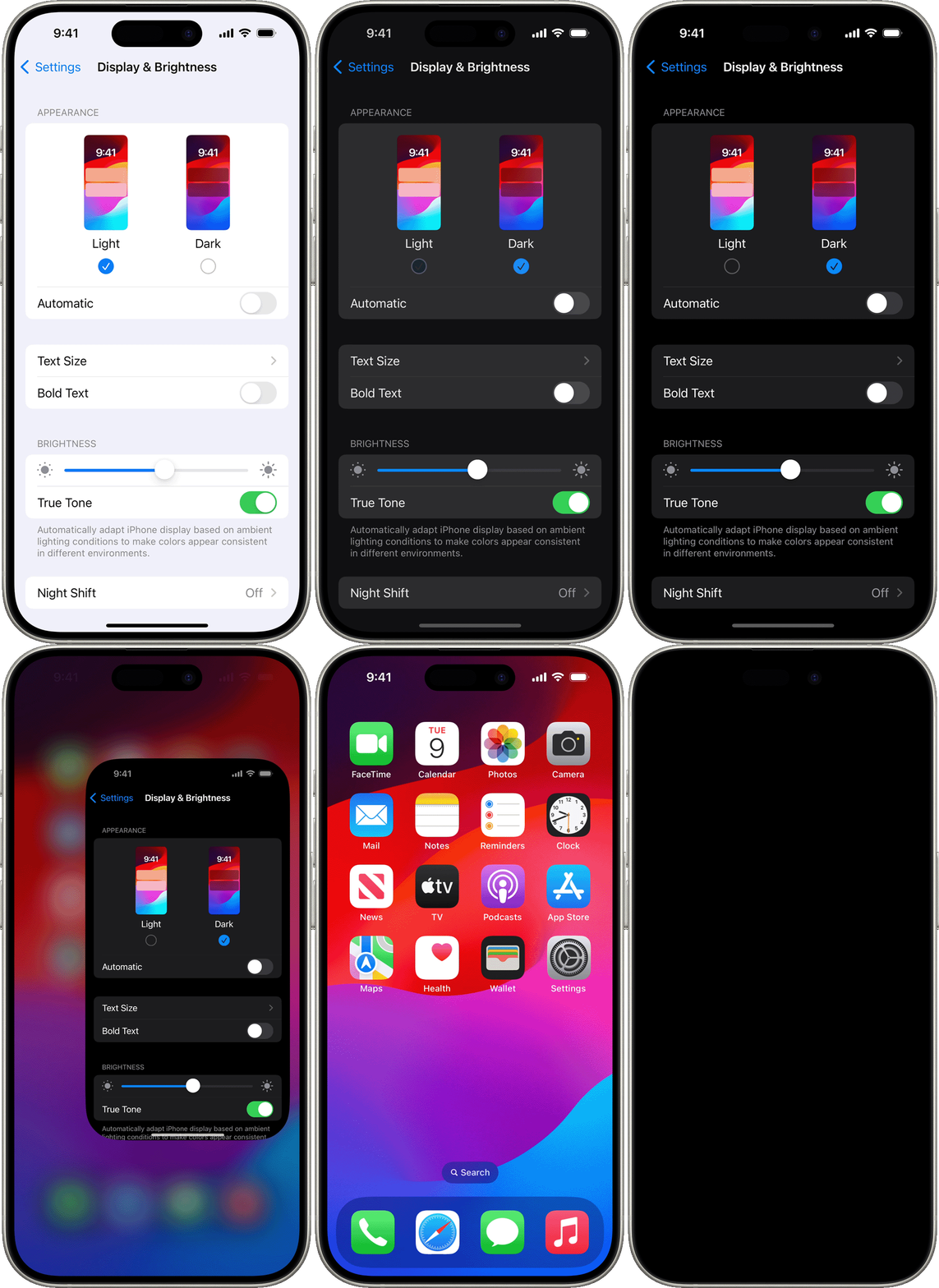
Note: Dark mode is available in iOS 13 and later.
If you have been confused about how to enable the dark mode for your Google Discover feed, we hope this explains all the steps that you have been missing out on. Now, check out how to give your eyes a break by enabling the soothing blue light filter on your iPhone.
