


In our quest to find a reliable method to disable YouTube Shorts, we were frustrated by the lack of genuine solutions available online. After sifting through countless articles, it became clear that many suggestions were misleading and ineffective.
As a result, we explored various methods and found an easy way to block YouTube Shorts on mobile, desktop and TV.
This article aims to provide a straightforward approach to disabling YouTube Shorts without relying on any third-party apps, APKs or extensions.
Turning Off YouTube Shorts on Mobile or Desktop
On YouTube Mobile App
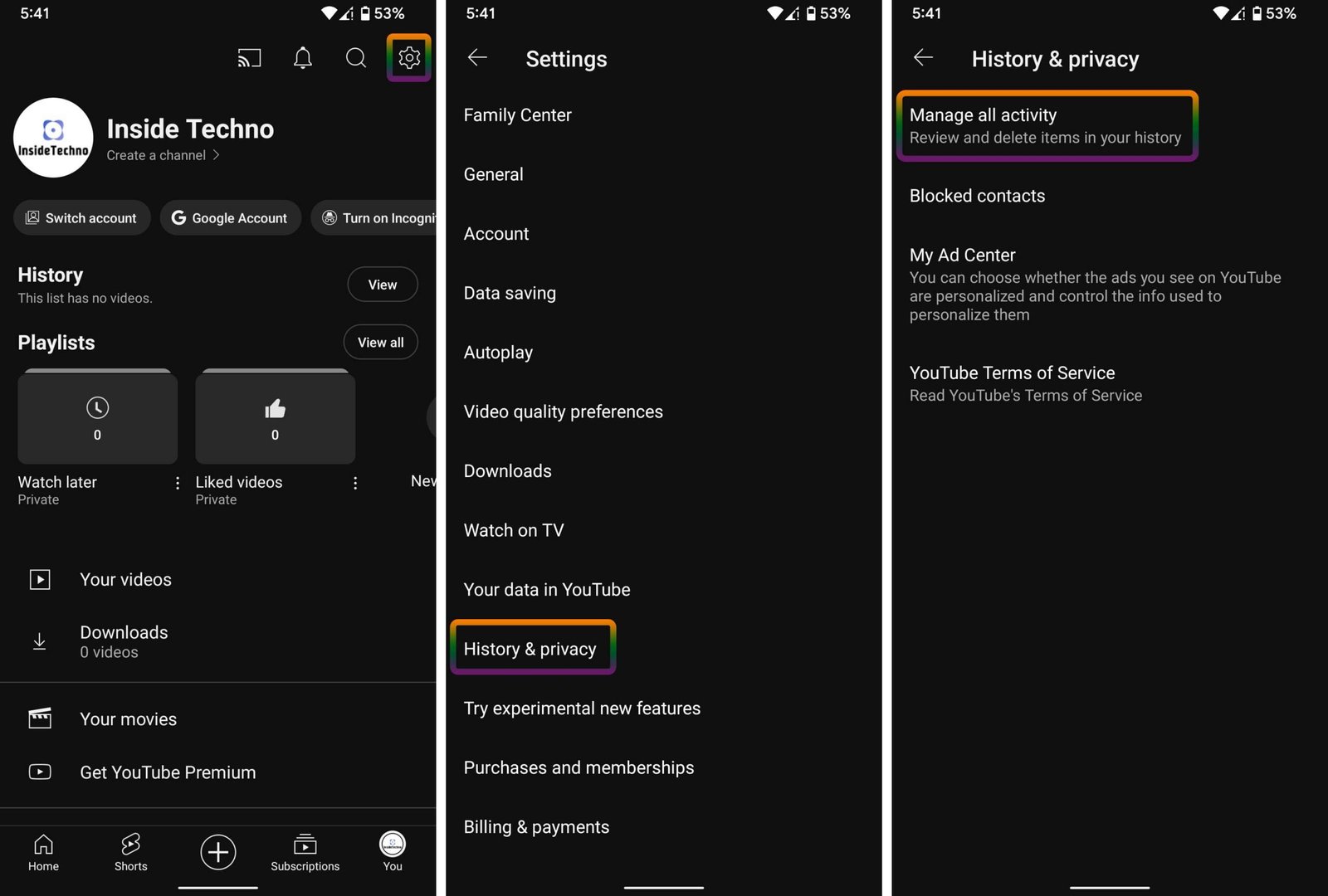
- Tap Profile Icon in the YouTube app
- Tap Settings > History & privacy > Manage all activity
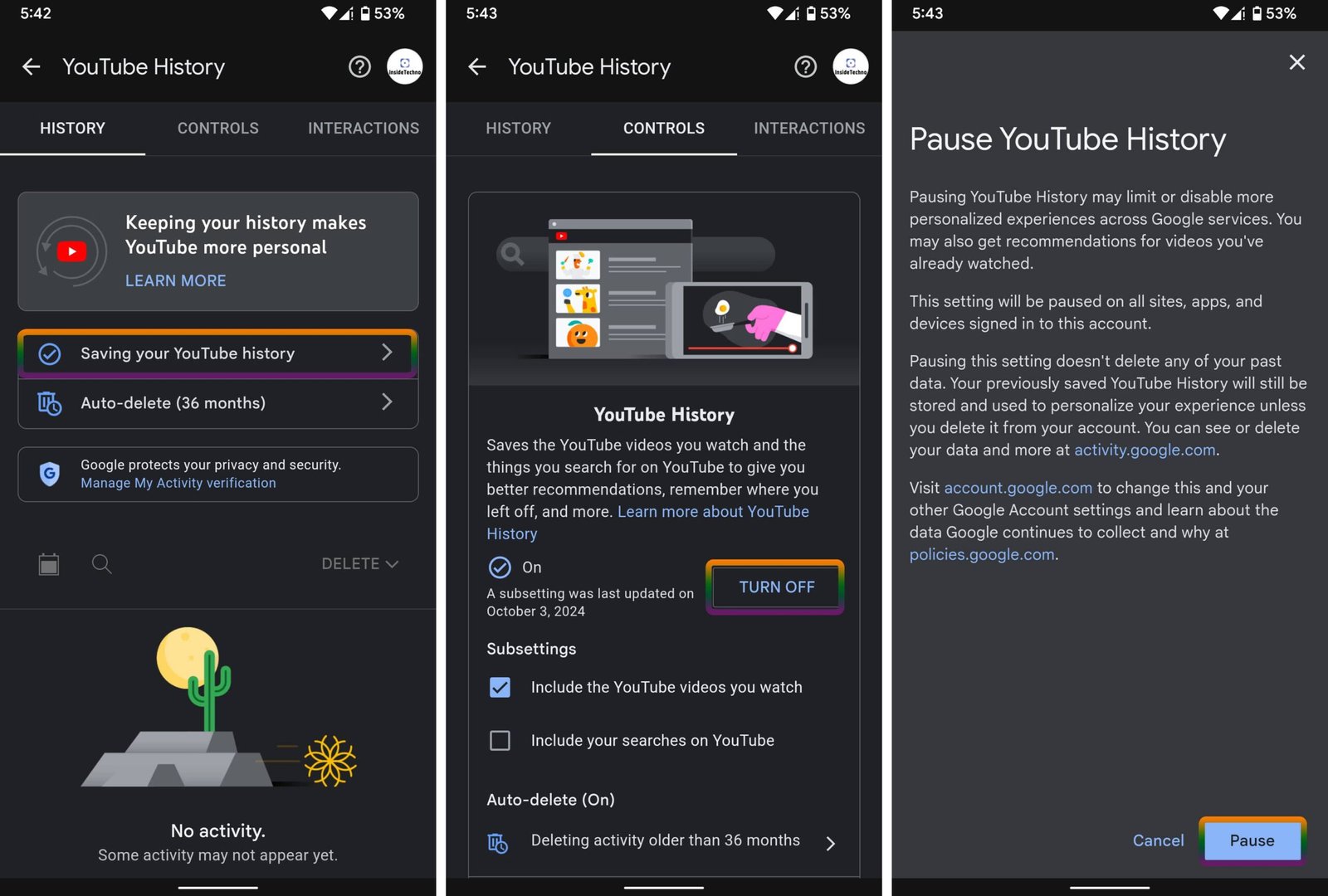
- Tap Saving your YouTube history > TURN OFF > Pause
On Desktop
- Go to YouTube.com
- Click the Profile Icon > Google Account
- In the newly opened tab click Data & privacy in the left panel
- Click YouTube History > Turn off > Pause
If you’re looking to embed YouTube Shorts rather than disable them, check out our previous article on how to get YouTube Shorts embed code for your website or blog.
However, if you’re here to remove Shorts from your YouTube experience, read on for our tested solution.
Don’t forget to check out the other methods as we reveal their true effectiveness and clear up common misconceptions. By clarifying these myths, we hope to illuminate the confusion created by misleading content on the internet and guide you toward a true and easy solution.
How to Disable YouTube Shorts
Fortunately, this method allows you to disable the feature regardless of your device. The following steps will work whether you’re using an iPhone, Android, desktop, Firestick, Google TV or Apple TV devices.
On YouTube Mobile App – Android and iPhone
- Open YouTube app on your phone and tap the profile icon on the bottom-right corner
- Tap Settings icon ⚙️ on the top-right corner
- Tap History & privacy > Manage all activity

- Tap Saving your YouTube history
- Tap TURN OFF > Pause
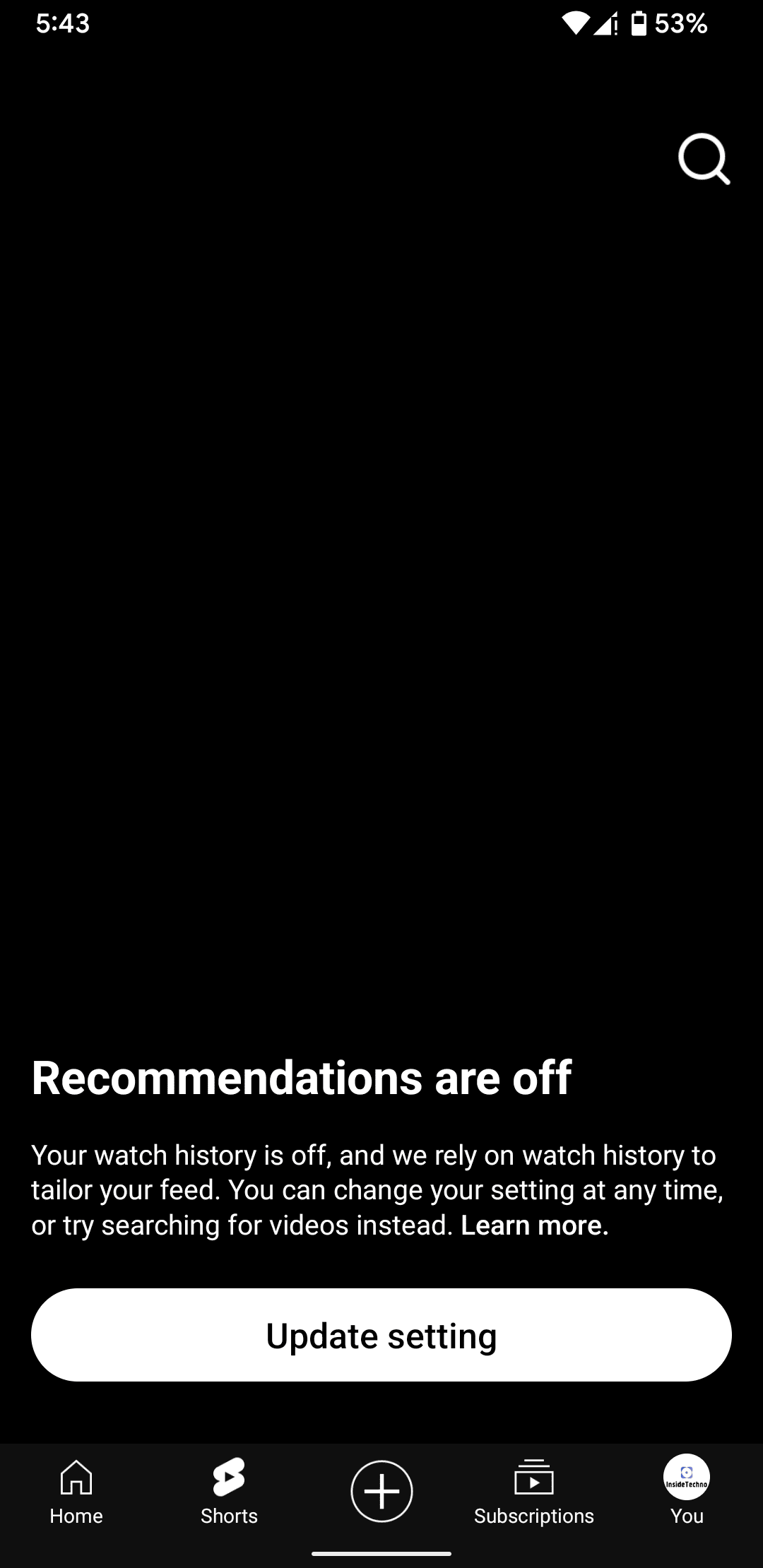
Now, reopen the YouTube app on your phone and check the Shorts section. It should display a blank screen, as shown in the image below.
Note
Turning off YouTube History in your Google Account activity settings will also disable the YouTube Home feed in both the app and on the web.
This change applies at the account level, meaning YouTube Shorts and the Home feed will be disabled on any device where you’re signed in with this Google account.
On Desktop
- Go to YouTube.com
- Click the Profile Icon on the top-right corner
- Click Google Account in the menu
- A new tab will open now. Click Data & privacy in the left panel
- Click YouTube History > Turn off > Pause
Other Methods – But Are They Really Effective or Practical?
Let’s find out.
1. Click the X Icon in the Shorts Section on Desktop/Mobile Browser
One commonly suggested method is to click the ‘X’ icon in the Shorts section of the YouTube homepage on either your desktop or mobile browser.
However, it’s important to note that while this action will hide YouTube Shorts for 30 days in that specific Home feed section, they remain accessible through the Shorts tab on both desktop and the YouTube mobile app.
So, is this really a helpful solution? Given that Shorts are still available on the dedicated mobile app, it hardly qualifies as a true way to disable YouTube Shorts entirely.
2. Use an Older Version of the YouTube Mobile App
Another suggestion that surfaces is to use an outdated version of the YouTube app to avoid Shorts. Seriously? Sacrificing access to new features and updates just to disable Shorts seems impractical.
YouTube Shorts launched in September 2020, which means this approach essentially advises using an app that’s four years old.
Additionally, if you try to use an outdated version of the app, many devices will prompt you to update it as soon as you open the app.
3. Tap ‘Not Interested’
Another workaround involves marking numerous short videos as ‘Not Interested’. However, this is merely a temporary fix. Over time, Shorts will reappear in your feed, making this method ineffective for anyone seeking a permanent solution.
4. Turn Off Shorts in YouTube App Settings
Some articles suggest going to the YouTube app settings > General and turning off Shorts.
We tested this method on both Android and iOS apps, only to find that no such option exists in the settings. If there’s no option available, how can it be presented as a valid solution?
It seems like this advice might be the result of automated content or AI tools pulling from similar, inaccurate sources found across the web. Needless to say, this is not a reliable solution! 😄
In conclusion, the methods commonly suggested for disabling YouTube Shorts fall short of providing a reliable and lasting fix. It’s essential to stay informed about what truly works, rather than being misled by ineffective solutions.
We believe that turning off YouTube History in your Google account settings is the only truly effective and simple method. This approach ensures that both YouTube Shorts and the Home feed are disabled across all devices where you’re signed in with your Google account.
If you know of any other possible solutions, feel free to share them in the comments below!
Don’t Miss These
